01
What Metrica does
Metrica shows where people come from, which pages they view, where useful actions happen, and where the next step is lost.
Overview gives a quick state of the site.
Sessions show the path of a specific visit.
Goals, forms, and funnel help evaluate useful actions.
Site audit explains what affects search, speed, and page clarity.
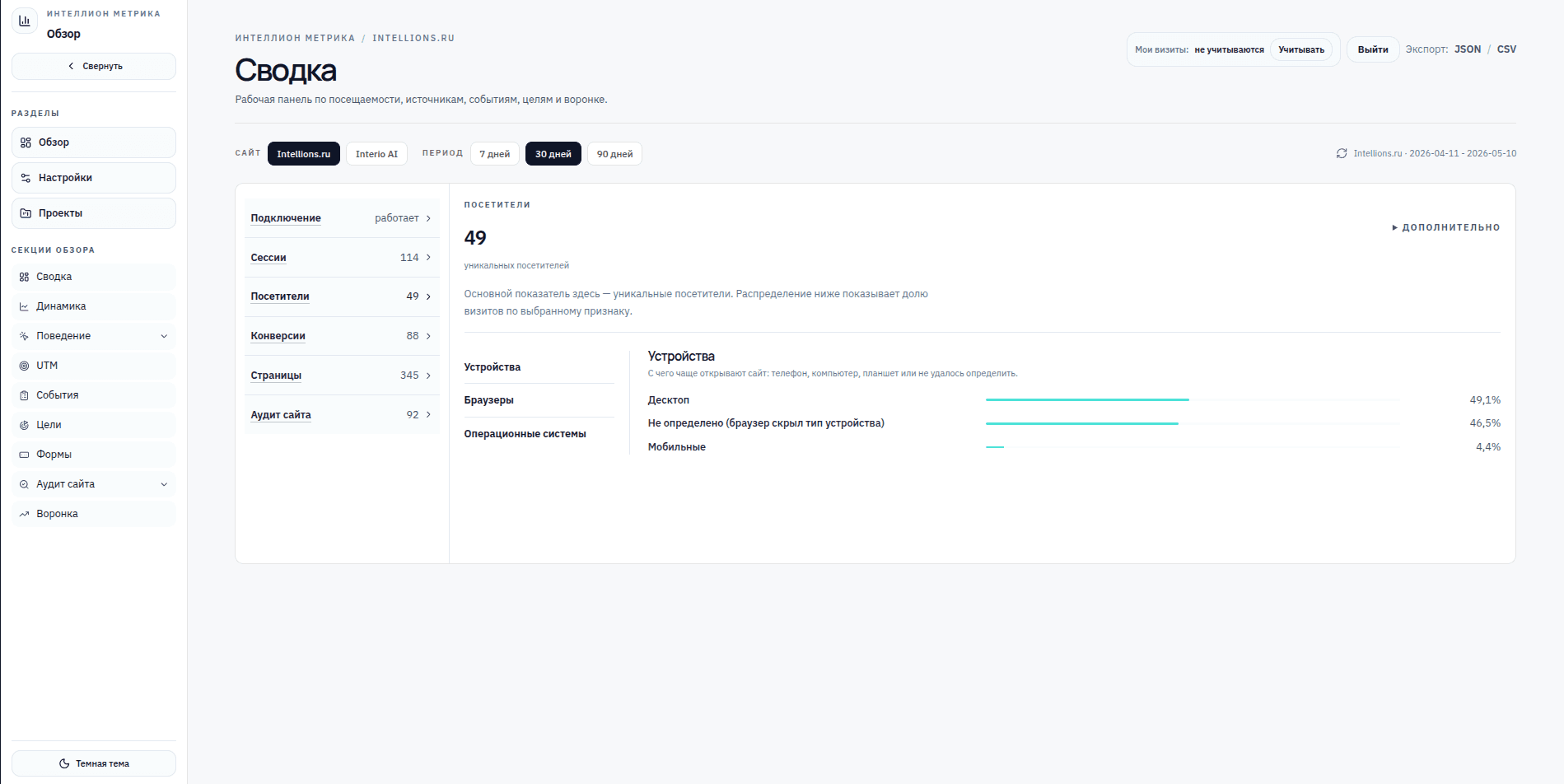 general overview screen with site and period selector
02
How to connect a site
After signup, add a site, copy the installation code, and place it on your pages before the closing body tag.
Open Settings and choose Sites and connection.
Add a site or choose an existing one.
Copy the installation code.
Click Check connection and open the site in a browser.
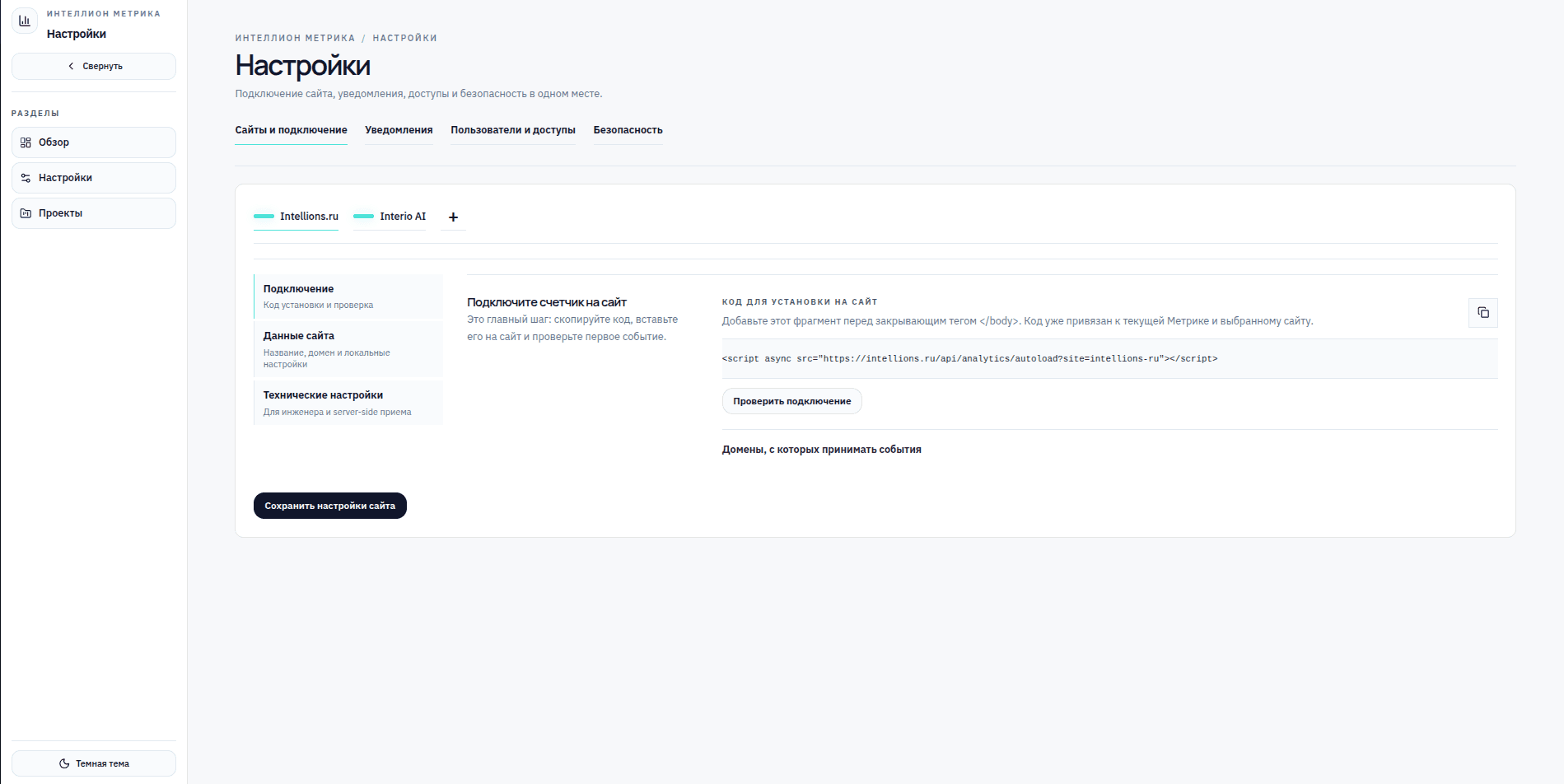 connection section with installation code and check button
03
First data
First events appear after a visitor opens the site with the installed script. If the sample is small, Metrica marks findings as preliminary.
One real visit is enough to check installation.
Around 20 visits are enough for first cautious observations.
For stronger page, source, and UTM findings, collect 50-100 visits.
Small groups, such as 2-3 mobile visits, should not be treated as a stable diagnosis.
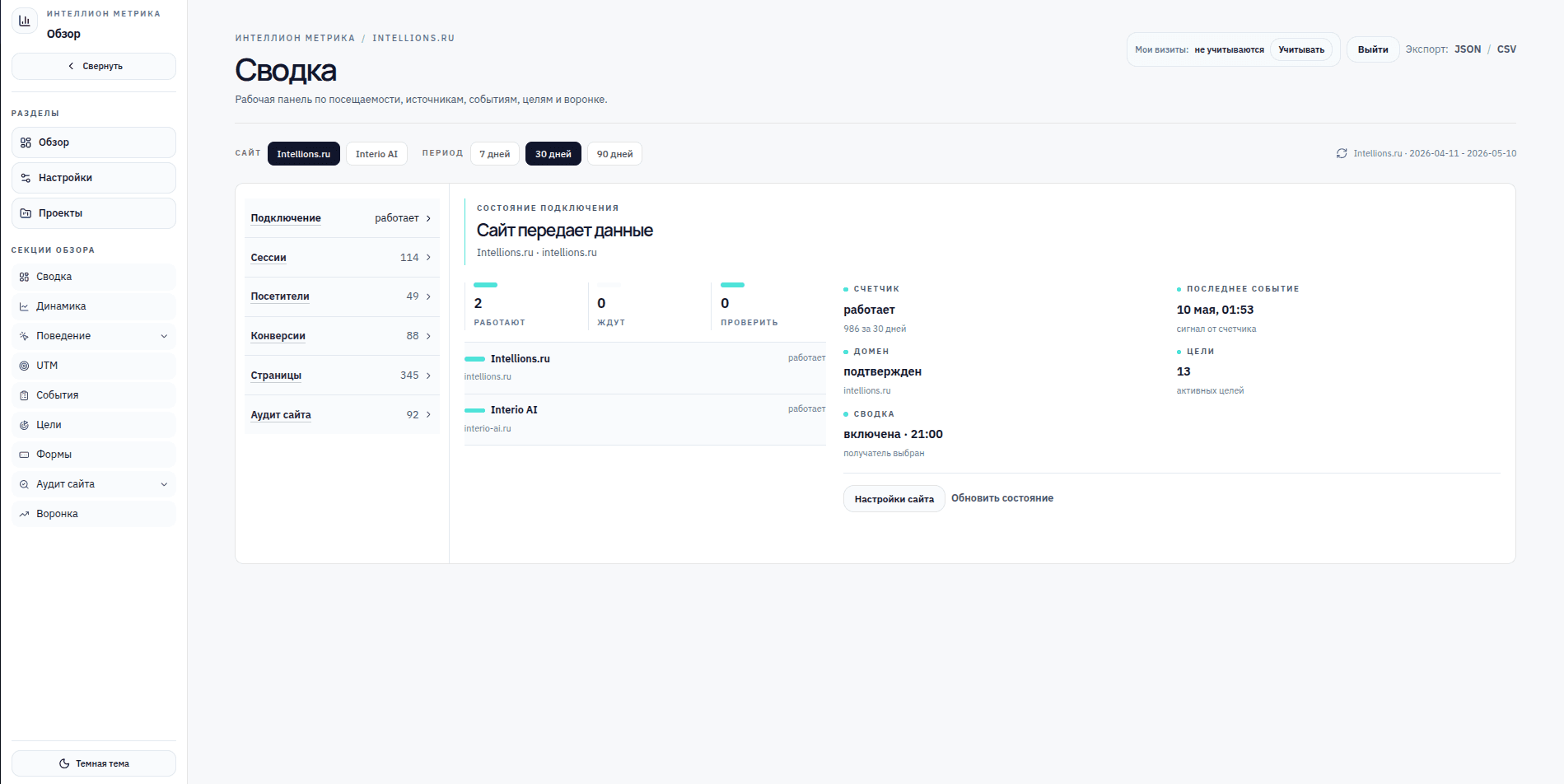 connection status and first session/event list
04
How to read the overview
The overview answers quickly: whether data is collected, how many people came, whether actions exist, and what to check first.
Choose a section or subsection on the left.
The selected detail opens on the right.
The period selector changes data across sections.
If there are multiple sites, choose the required site first.
05
Sessions and visitors
A session is one visit. One visitor may create several sessions, so these values do not have to match.
Sessions help inspect a visit step by step.
Visitors show how many unique people came to the site.
Returning visits are useful, but internal visits should be excluded.
Many sessions with few visitors means some people came back several times.
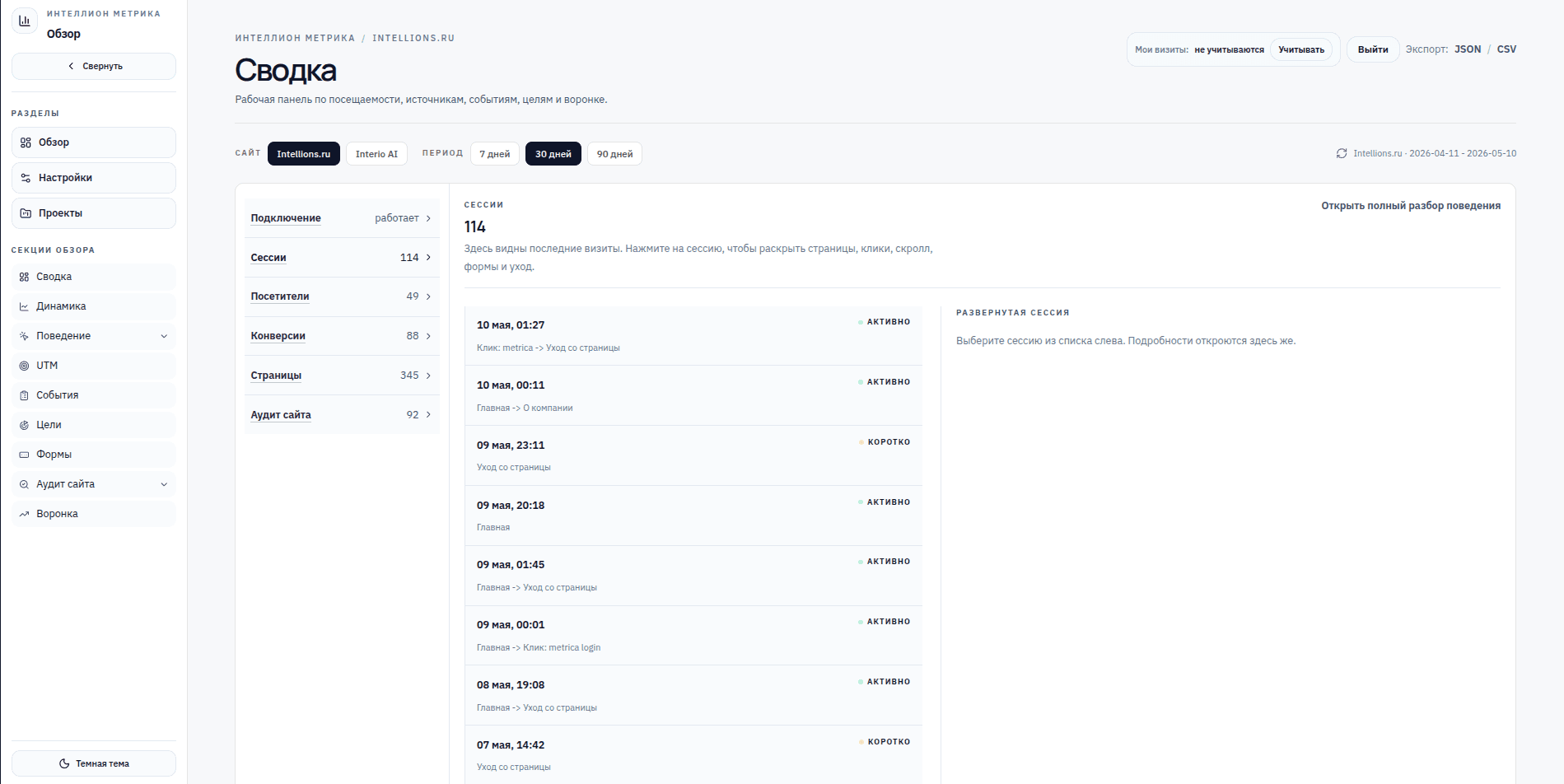 session list and selected session details
06
Goals and funnel
Goals represent useful actions: form submit, contact click, messenger transition, registration, or another important action.
Recommended goals can be enabled after real events appear.
The funnel shows the path from visit to result.
Not all actions are mandatory funnel steps.
Low-sample findings should be treated as preliminary.
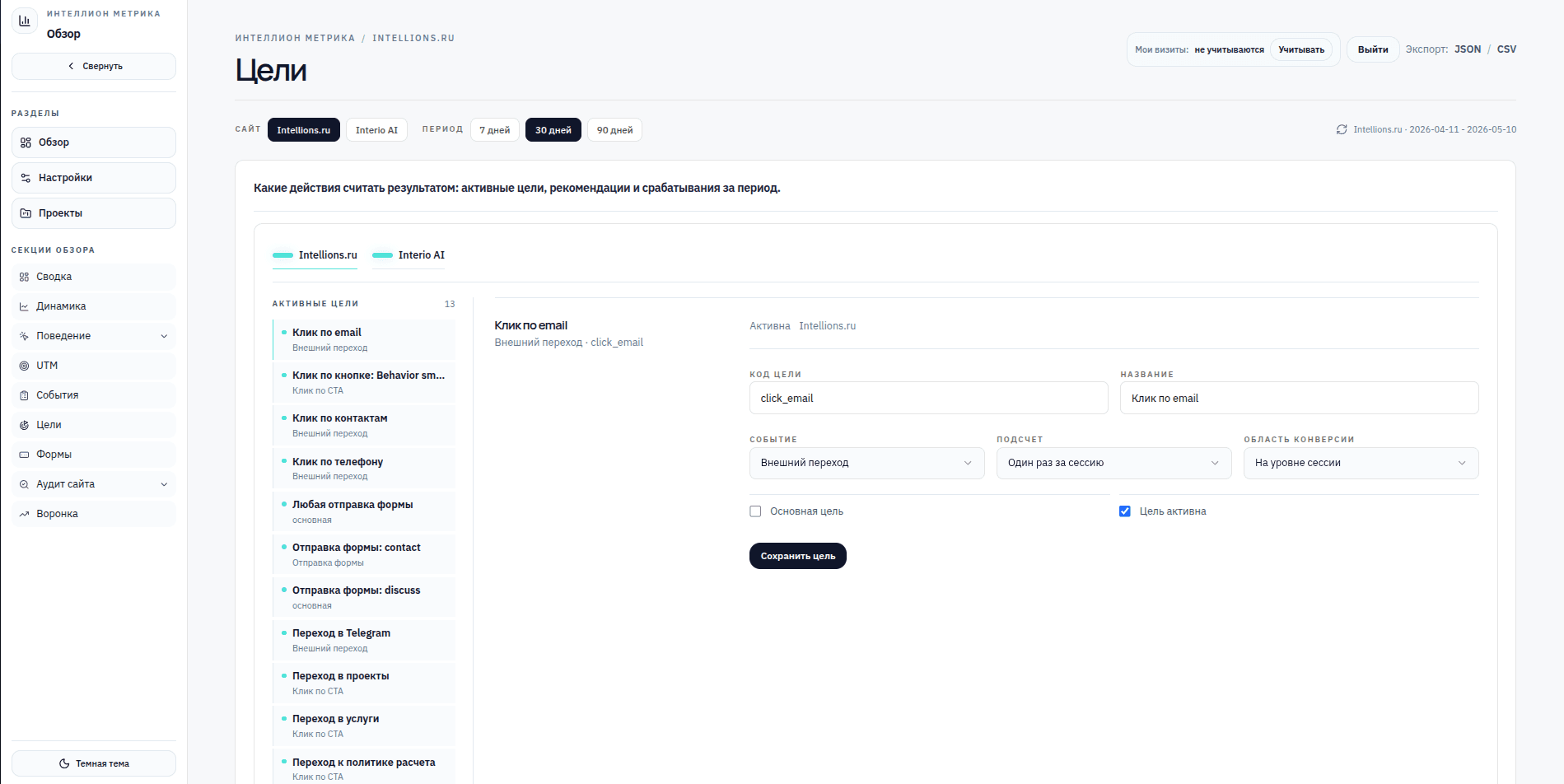 active and recommended goals screen
07
UTM tags
UTM tags help understand which ad, post, newsletter, or partner link brought people and produced results.
Create a UTM-tagged link in the UTM section.
Use it in an ad, post, email, or partner placement.
Metrica tracks visits automatically when people use that link.
Visits without tags may still be normal direct or app traffic.
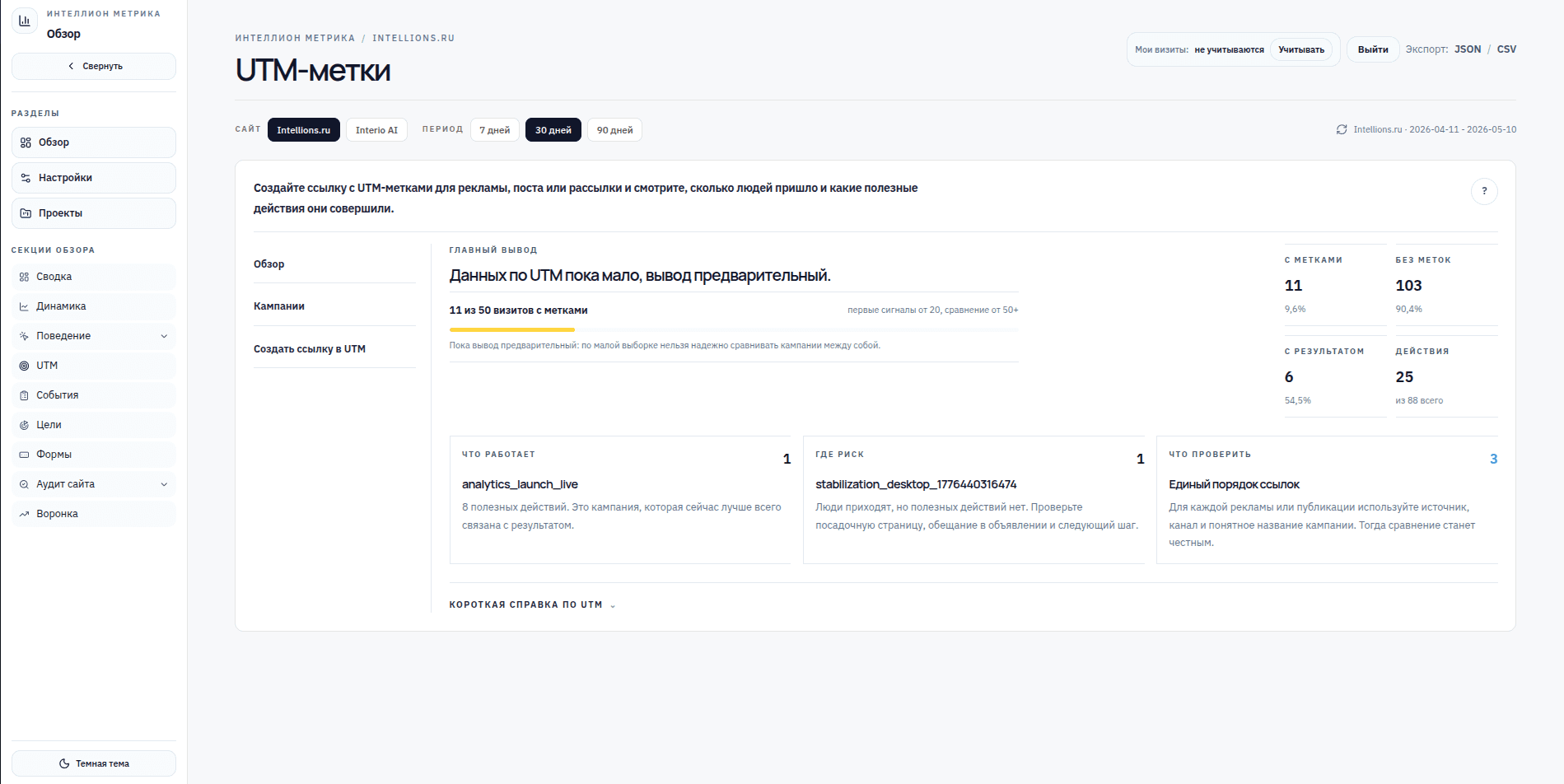 UTM link builder and campaign list
08
Forms and events
Events record actions on the site. Forms show whether visitors reached submission or stopped earlier.
An event is an action: view, click, form submit, page exit.
Forms help see losses before a request.
Technical names should be replaced with plain labels.
If a form exists but submits do not, check fields, errors, mobile layout, and button visibility.
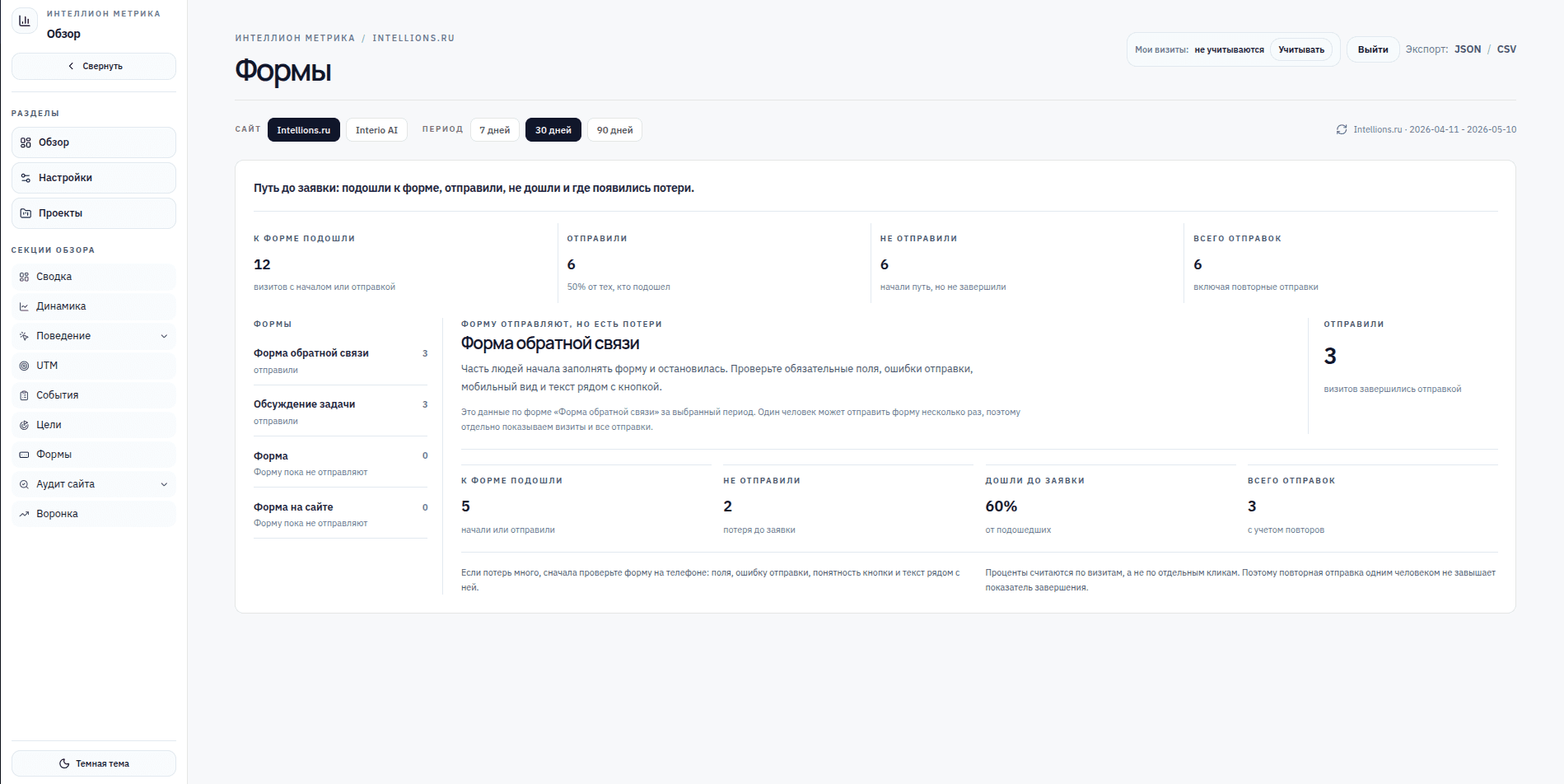 forms section with form selection and details
09
Site audit
The audit checks homepage access, SEO basics, robots.txt, sitemap, meta tags, structure, and technical issues.
Overview shows the total score and first important action.
Recommendations explain what was found, why it matters, and how to fix it.
If the site is not available to the audit robot, check firewall, redirects, SSL, or external access.
Some fixes for external client sites may require a developer or assisted setup.
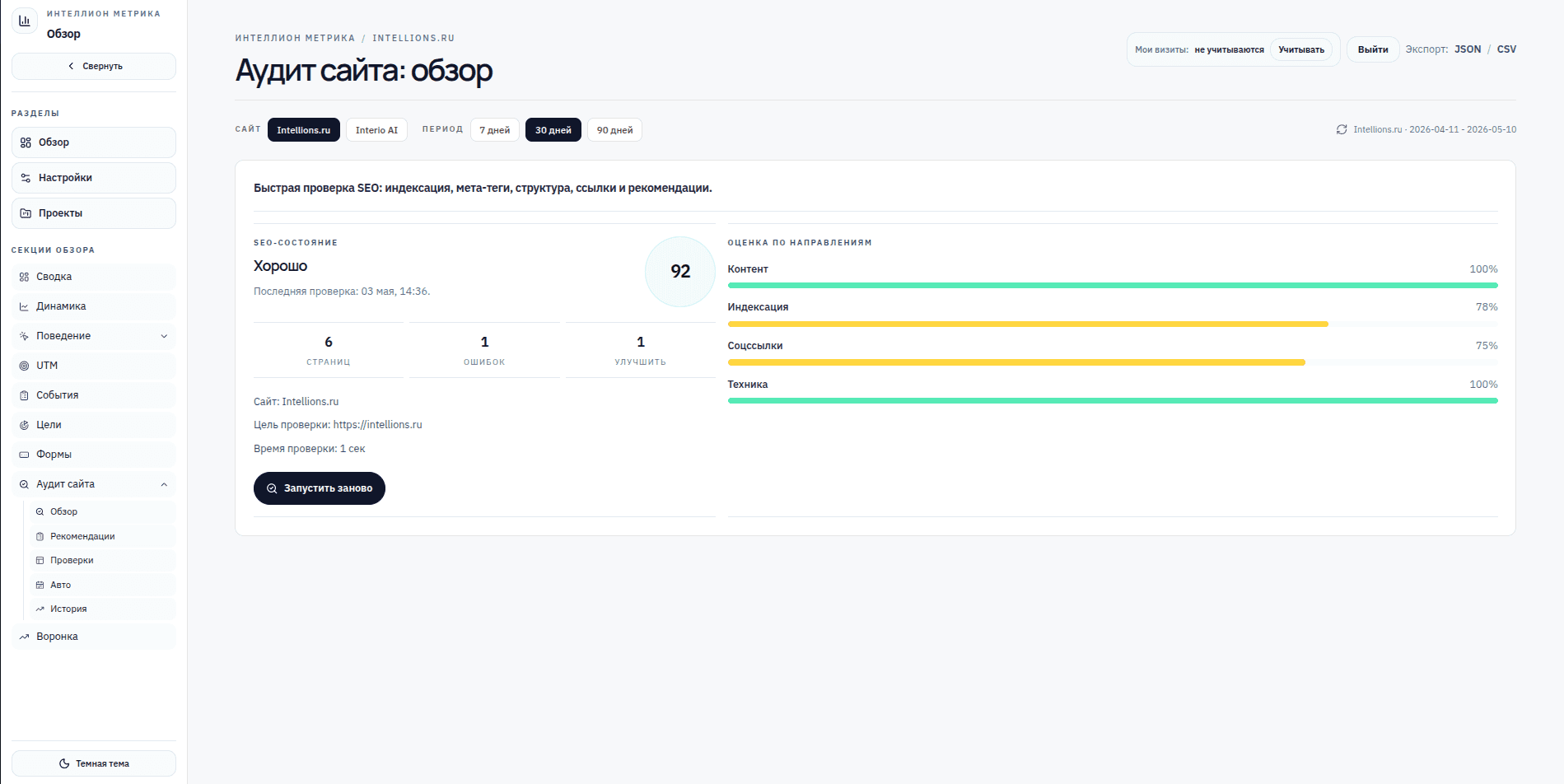 site audit recommendation with explanation
10
How to exclude internal visits
Your own tests and refreshes can distort analytics. They should be excluded by default.
The top bar has an internal-visit preference.
When excluded, your actions should not appear in analytics.
Team-level IP, device, or employee exclusions can be added later.
For tracker testing, temporarily include your visits.
 My visits preference toggle
11
Self-hosted option
Self-hosted is for cases where analytics data must stay on the client's own server or infrastructure.
The client runs Metrica on their server.
Data stays in their environment.
Updates and security need separate maintenance.
Cloud is faster to start; self-hosted gives stronger data control.
